How to Manage LinkedIn Comments With an API in 2026
The comment thread under a LinkedIn post is where deals actually start. Someone asks a question, you reply with a link, and that turns into a demo. Doing that from your own code, though, means dealing with LinkedIn's versioned socialActions API, and it fights you.
Two things make it hard. First, comments do not run on the posting scopes. w_member_social lets you publish, but reading and writing comments needs a separate set of Community Management scopes (w_member_social_feed, w_organization_social_feed, r_organization_social_feed). Miss those and every comment call returns a 403 that just says you lack permission. Second, LinkedIn identifies a comment with a composite URN like urn:li:comment:(urn:li:activity:123,456), and you have to encode it correctly or the API rejects the path.
PostPeer handles both. One endpoint, the right scopes requested at connect time, and the same request shape you already use for Instagram, Facebook, and Threads. Here's how to list, reply to, and delete LinkedIn comments from your own code.
What you need
- A PostPeer account (free tier works)
- Your access key from the dashboard
- A LinkedIn member account, or a company Page you administer
Step 1: Get your API key
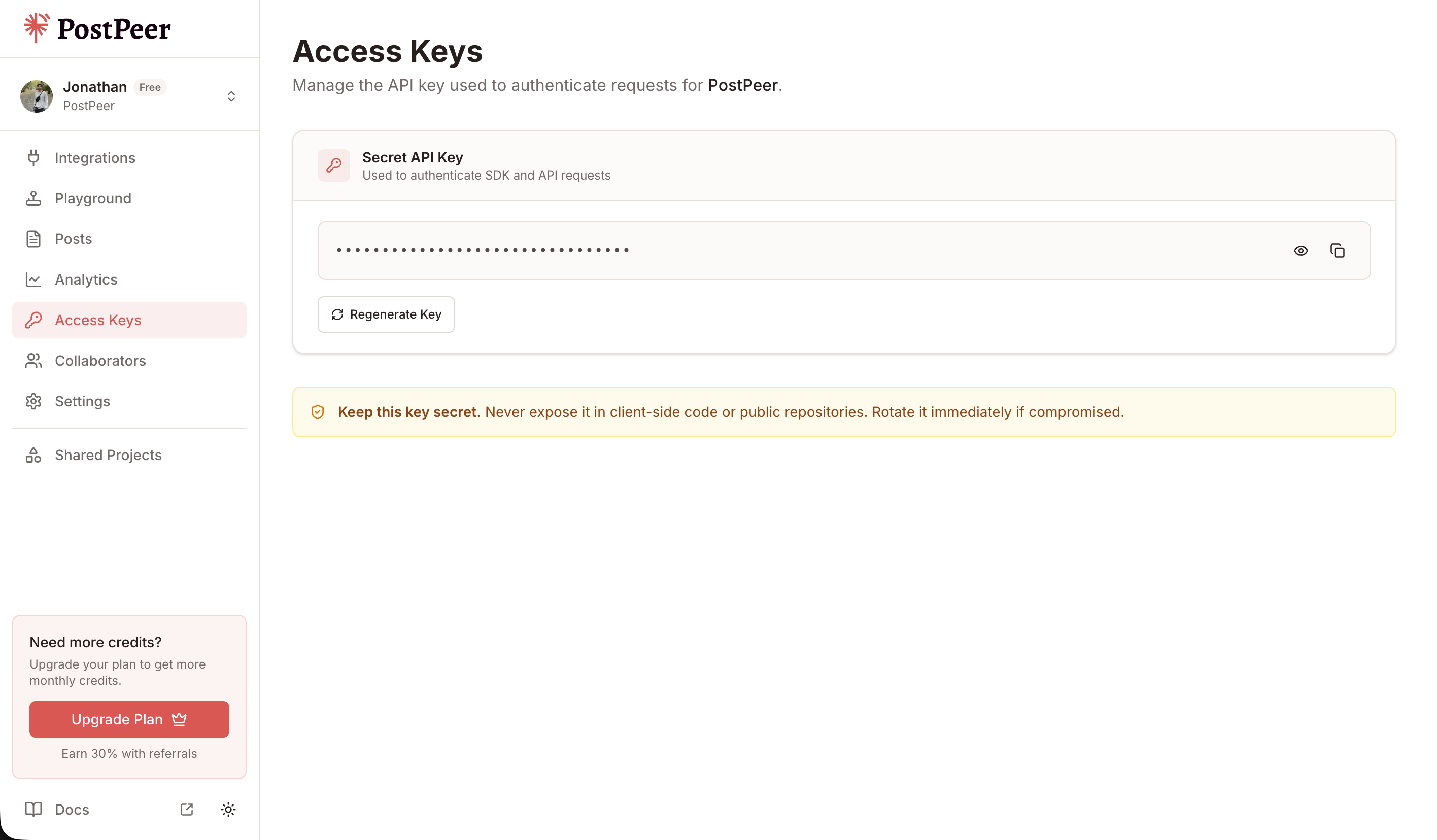
Sign up at PostPeer, open the dashboard, and grab your access key from the Access Keys page. Every request uses the x-access-key header:
-H "x-access-key: YOUR_API_KEY"Grab your API key from the Access Keys page in your dashboard. Treat it like a password.
Step 2: Connect your LinkedIn account
PostPeer runs the OAuth flow. Hit the connect endpoint to get an authorization URL:
curl https://api.postpeer.dev/v1/connect/linkedin \
  -H "x-access-key: YOUR_API_KEY"
You'll get back a URL. Open it in a browser and authorize the app. On the consent screen you'll see the comment permissions listed, things like "Create, modify, and delete comments and reactions on your organization's posts." Those are the Community Management social-feed scopes, and PostPeer requests them for you so you never file your own LinkedIn app review.
One thing to watch: if you connected this LinkedIn account before comment support existed, its token predates those scopes. Reconnect it once to grant them. Posting and analytics keep working the whole time, it's only comments that need the fresh token.
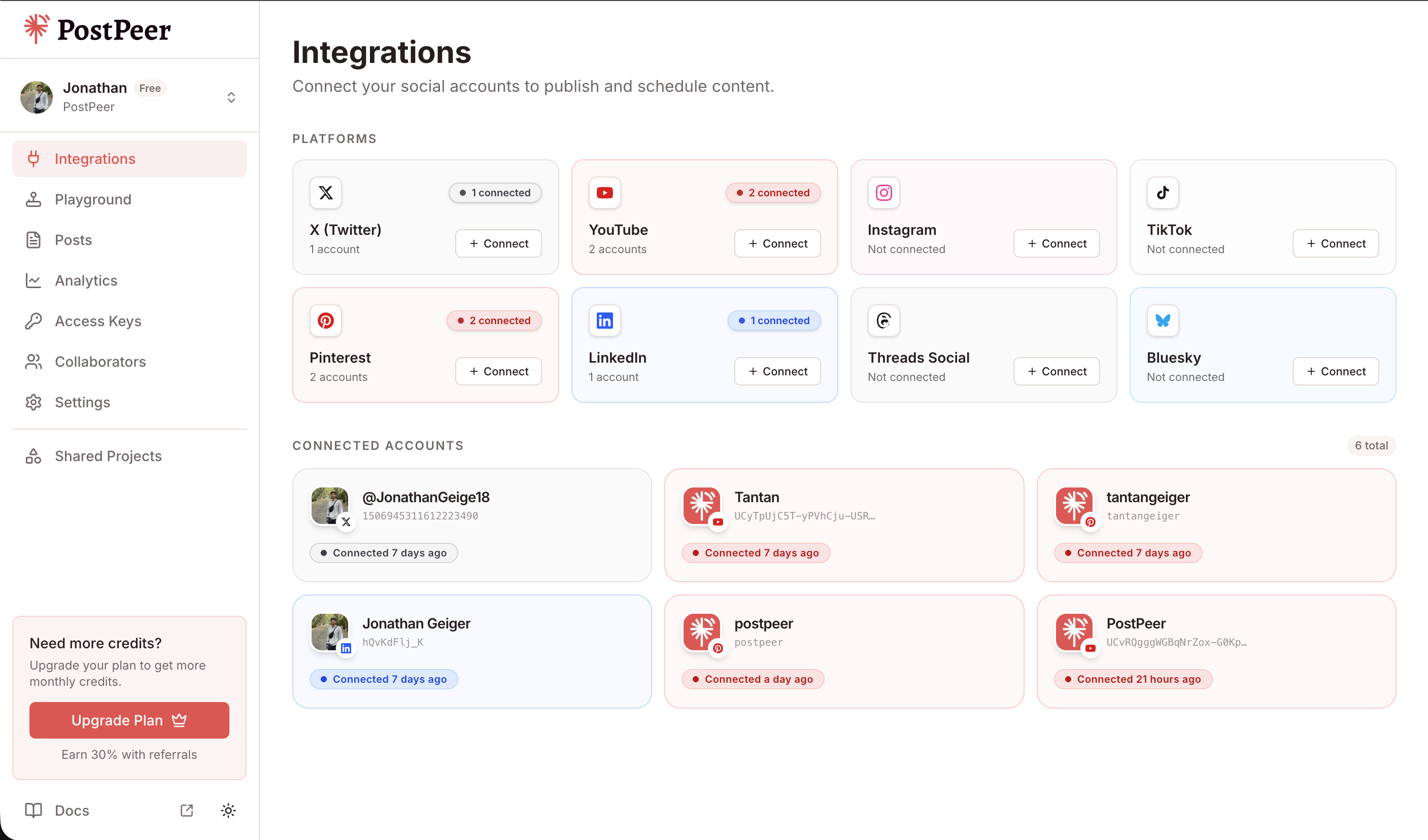
Once you've authorized, grab the account ID from the integrations endpoint:
curl https://api.postpeer.dev/v1/connect/integrations \
  -H "x-access-key: YOUR_API_KEY"
The response includes an id for each connected account. That's your accountId for every comment call below. If the account is a company Page, PostPeer posts comments on behalf of that Page. If it's your member account, comments go out as you. You don't build the actor URN yourself. You can also connect from the PostPeer dashboard if you'd rather click a button than run curl.
Step 3: List comments on a post
Pass platform=linkedin, your accountId, and the postId of the post you want to read. For LinkedIn the postId is the share URN, like urn:li:share:7503693751647723520:
curl "https://api.postpeer.dev/v1/comments?platform=linkedin&accountId=your-li-id&postId=urn:li:share:7503693751647723520" \
  -H "x-access-key: YOUR_API_KEY"
Response:
{
	"success": true,
	"comments": [
		{
			"id": "urn:li:comment:(urn:li:activity:7503693773307224065,7506340885752803328)",
			"text": "Where can I read the docs?",
			"author": { "id": "urn:li:person:ZSAPHe3Z55", "name": null },
			"timestamp": "2026-08-05T14:22:10Z",
			"likeCount": 3,
			"hidden": null,
			"replies": []
		}
	],
	"nextCursor": null
}
The id you get back is the full composite comment URN. Keep it. That's exactly what you pass as commentId when you reply to or delete this comment, and PostPeer handles the URN encoding for you.
Default page size is 25 comments. Bump it with limit (1 to 100). To read the nested replies under a specific comment, pass that comment's URN as the postId:
curl "https://api.postpeer.dev/v1/comments?platform=linkedin&accountId=your-li-id&postId=urn:li:comment:(urn:li:activity:7503693773307224065,7506340885752803328)" \
  -H "x-access-key: YOUR_API_KEY"
Full field list is in the list comments docs.
Step 4: Post a top-level comment
To leave a new comment on the post itself, POST to the same endpoint with a postId and your text:
curl -X POST https://api.postpeer.dev/v1/comments \
  -H "x-access-key: YOUR_API_KEY" \
  -H "Content-Type: application/json" \
  -d '{
    "platform": "linkedin",
    "accountId": "your-li-id",
    "postId": "urn:li:share:7503693751647723520",
    "text": "Thanks for all the interest here, docs are in the first comment."
  }'
Response:
{
	"success": true,
	"commentId": "urn:li:comment:(urn:li:activity:7503693773307224065,7507031919084109824)"
}
That returned commentId is the composite URN for the comment you just created. This is the "post plus first comment" pattern a lot of people run on LinkedIn: publish the post, then drop the link in the first comment so the post itself stays clean. Publish with the posting API, then fire this call with the returned share URN.
Step 5: Reply to a comment
Replying looks almost identical, except you swap postId for commentId. A postId starts a new top-level comment, a commentId nests a reply under an existing one. Use the composite URN you got from the list response:
curl -X POST https://api.postpeer.dev/v1/comments \
  -H "x-access-key: YOUR_API_KEY" \
  -H "Content-Type: application/json" \
  -d '{
    "platform": "linkedin",
    "accountId": "your-li-id",
    "commentId": "urn:li:comment:(urn:li:activity:7503693773307224065,7506340885752803328)",
    "text": "Great question, sending you the link now."
  }'
The response is the same shape, a success flag and the new commentId for your reply. This is the loop behind an auto-responder: read comments in Step 3, match the ones you care about, reply here.
Step 6: Delete a comment
To remove a comment, send a DELETE with the comment's URN in the path and platform plus accountId as query params:
curl -X DELETE "https://api.postpeer.dev/v1/comments/urn:li:comment:(urn:li:activity:7503693773307224065,7506340885752803328)?platform=linkedin&accountId=your-li-id" \
  -H "x-access-key: YOUR_API_KEY"
Response:
{
	"success": true
}
Deletion is permanent. If the comment was posted by your Page or member account, it disappears for everyone. If it was someone else's comment on your post, deleting it pulls it from the thread.
One thing LinkedIn can't do here
There's no hide/unhide for LinkedIn comments. LinkedIn just doesn't expose that action through its API, so your moderation options are reply and delete. You'll notice the hidden field comes back as null for LinkedIn instead of true or false, since there's no hidden state to report. Plan your workflow around replying and deleting.
What it costs
Each Comments API call spends 1 credit, the same as every other PostPeer endpoint. Listing comments, replying, and deleting each count as one call, so budget for the volume you need. The free tier includes credits to test with.
What's next
That's the full loop: read comments and replies, post a top-level comment, reply into a thread, and delete when you need to moderate. It's enough to build a comment inbox, a first-comment automation, or an auto-reply bot on top of your LinkedIn presence.
Full reference lives on the LinkedIn Comments API page. If you want a no-code version to test the flow first, the LinkedIn comment manager runs on the same API behind a UI.
If you also want to publish the posts you're moderating, see how to post on LinkedIn with an API. And the free tier comes with credits to wire this into your app and test it.